How to get your OpenAI API key
Create an OpenAI API key, put a little credit on it, and connect it to PlotStudio. No coding — just a few clicks, about three minutes.
Before you start
An OpenAI API key is what gives PlotStudio access to OpenAI, through an account you own and manage. It is not the same thing as a ChatGPT subscription. You create it at platform.openai.com (the developer platform), not chatgpt.com — and a ChatGPT Plus plan does not include API access. You pay OpenAI directly for exactly what you use.
Sign in to the OpenAI platform
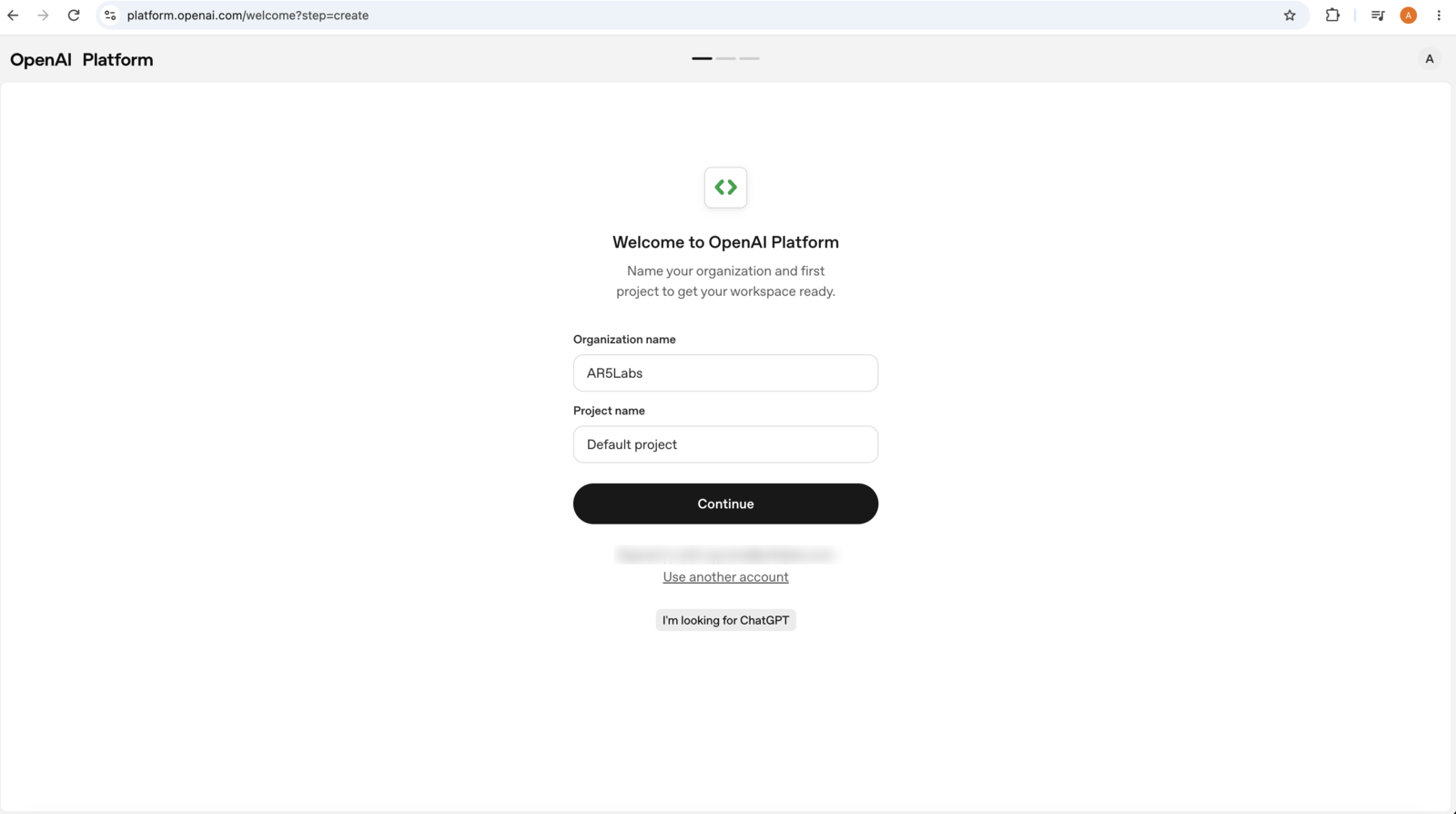
Go to platform.openai.com and log in, or sign up if you don't have an account. Brand-new accounts get a short setup flow that starts by asking for an organization name and a project name. Anything sensible works — your own name or your lab's name for the organization, and leaving the project as Default project is completely fine. Then click Continue.
Choose a plan and add some credit
Next you'll see Choose your plan. Pick Prototype — it starts at $5 and gives you access to all of OpenAI's latest models, which is what PlotStudio needs.
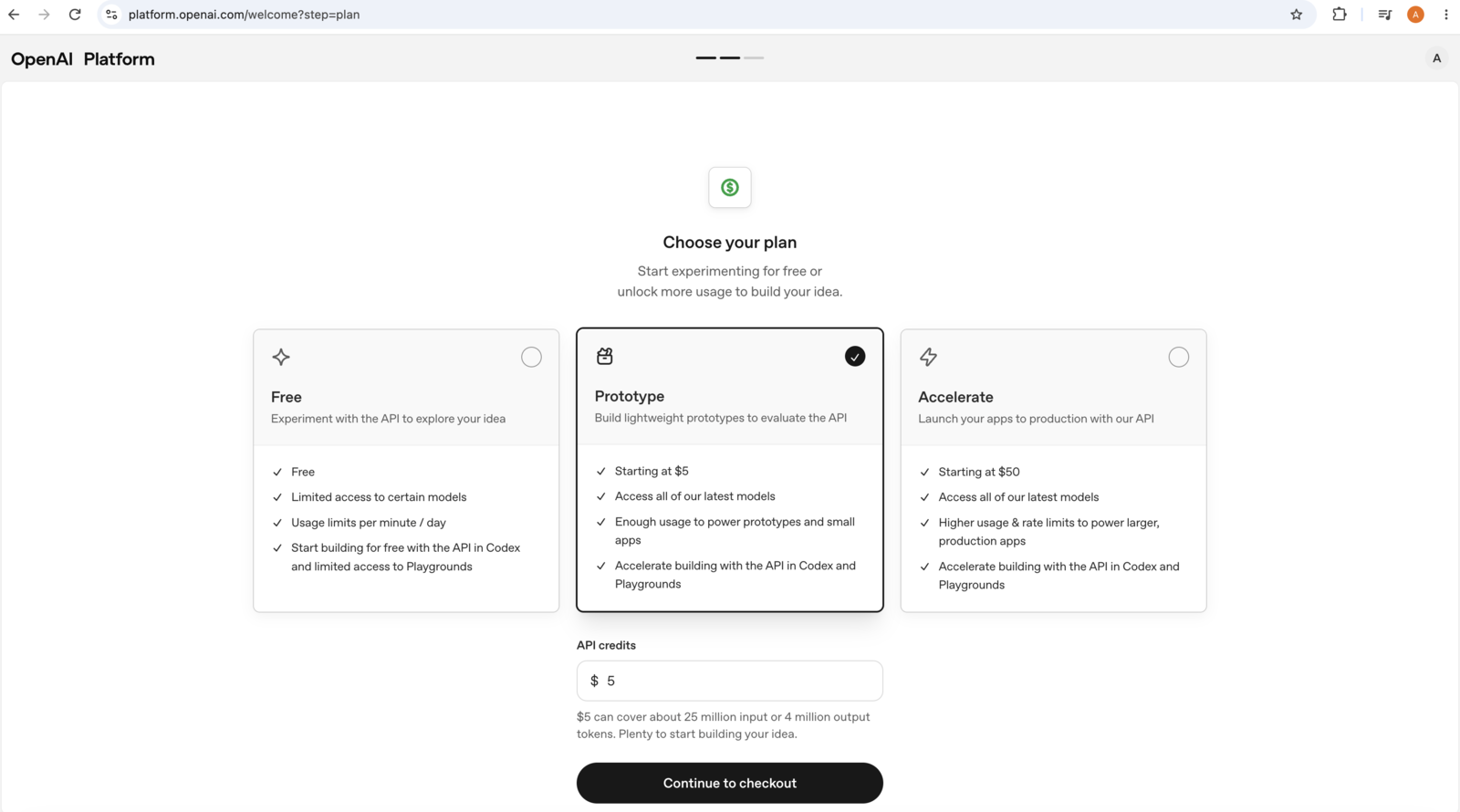
The API credits box is yours to set — put in whatever you're comfortable with. We suggest around $15 as a starting point. Then click Continue to checkout and pay. It's a one-off top-up, not a subscription — nothing recurring gets set up, and you can add more any time.
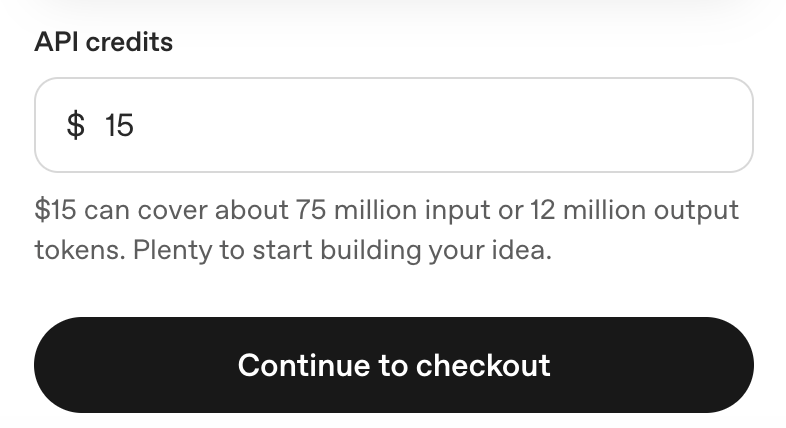
Why we suggest $15. PlotStudio isn't a chatbot — a single question runs a whole team of agents that profile your data, write and execute code, model it, and then write up the findings. That uses far more tokens than a chat message. The $5 minimum is plenty to try it out; $15 (roughly 75 million input tokens) just means you can explore a few datasets properly without thinking about topping up. Go higher or lower as you like.
Name and generate your key
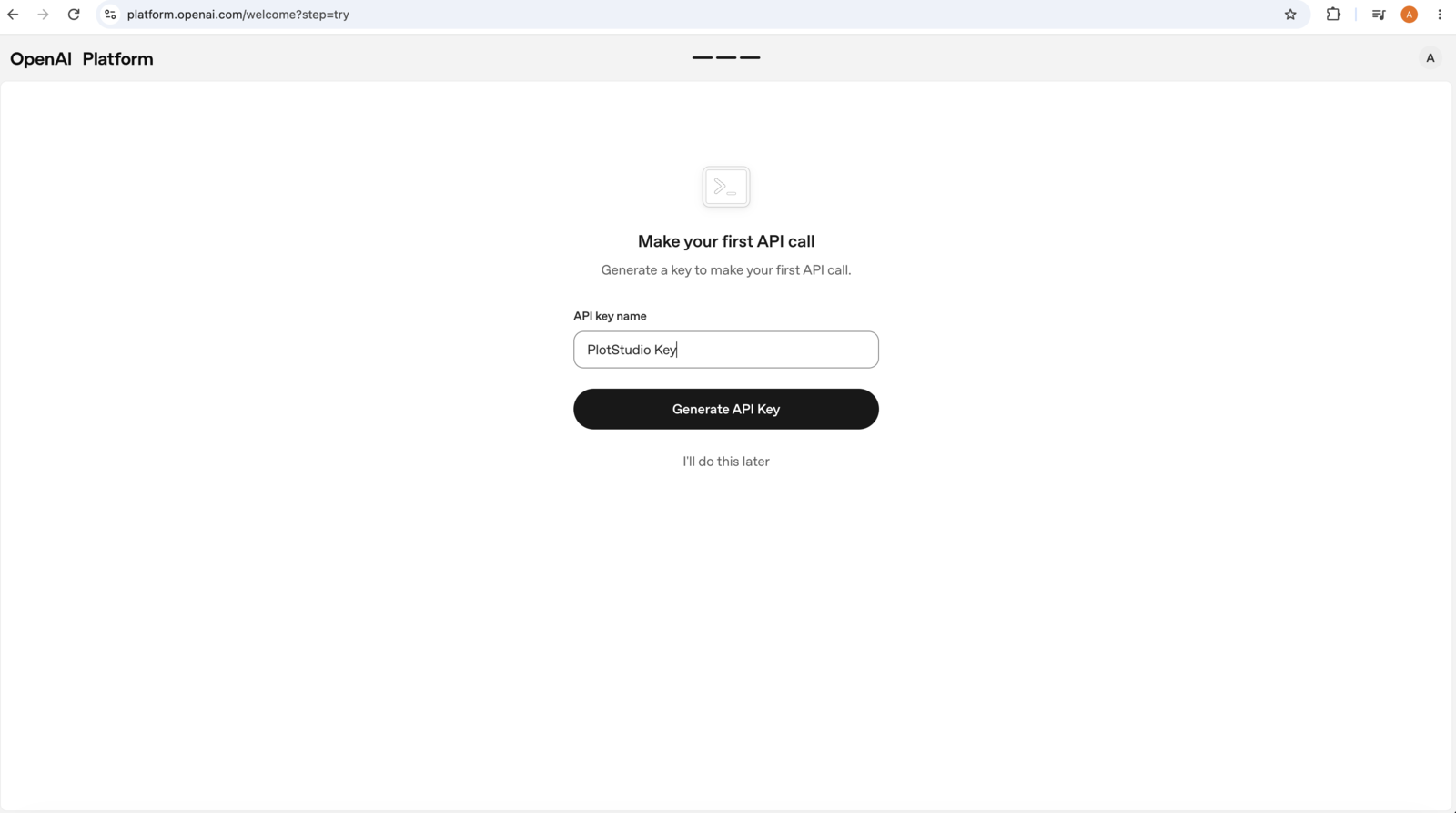
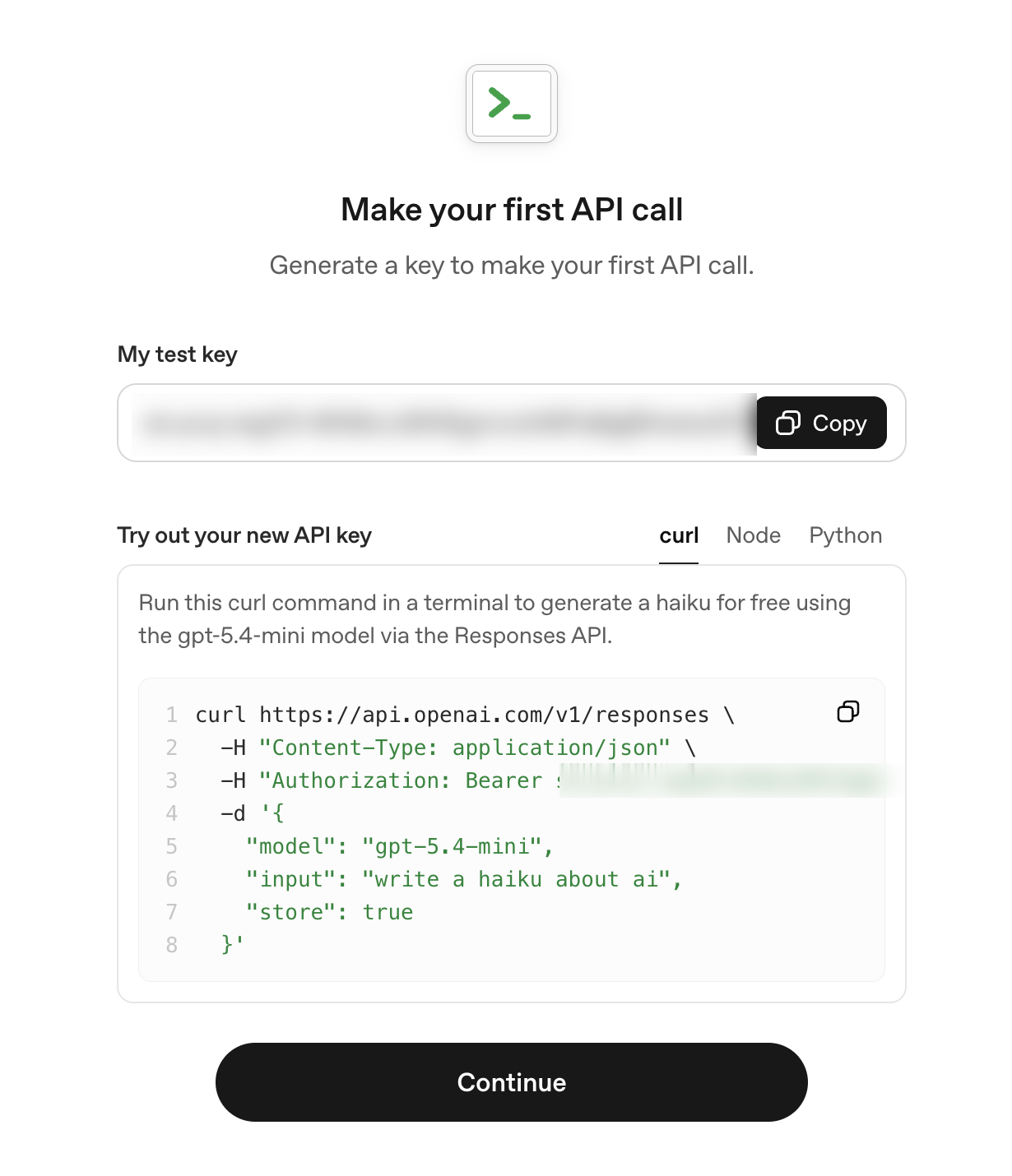
On the Make your first API call screen, type a name you'll recognise later —PlotStudio Key is a good one — and click Generate API Key.
Copy the key — it's only shown once
Your key appears under My test key, starting with sk-proj-. Click Copy. You can ignore the curl example underneath — that's for developers testing the key from a terminal, and PlotStudio does all of that for you. Then click Continue.
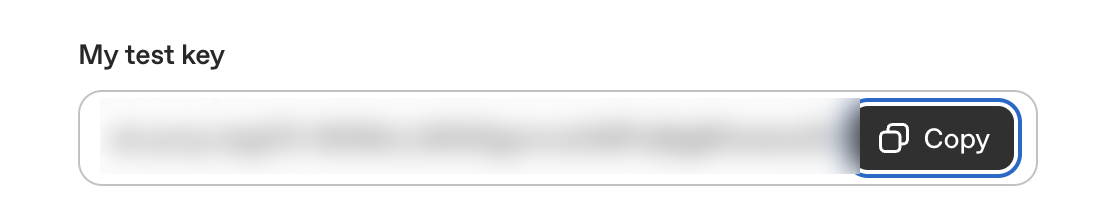
sk-…pFcA). Lost it? No problem: delete that key and create a new one. Treat it like a password — anyone who has it can spend your credit.Paste it into PlotStudio
Back in PlotStudio, on the AI Access setup step, paste the key into the box and click Validate & Continue. PlotStudio makes one quick call to check the key works, then stores it encrypted on your own device — it never reaches our servers.
A green Validated means you're done. If it comes back red, jump to the troubleshooting list at the bottom of this page.
Check your balance (and find your key again later)
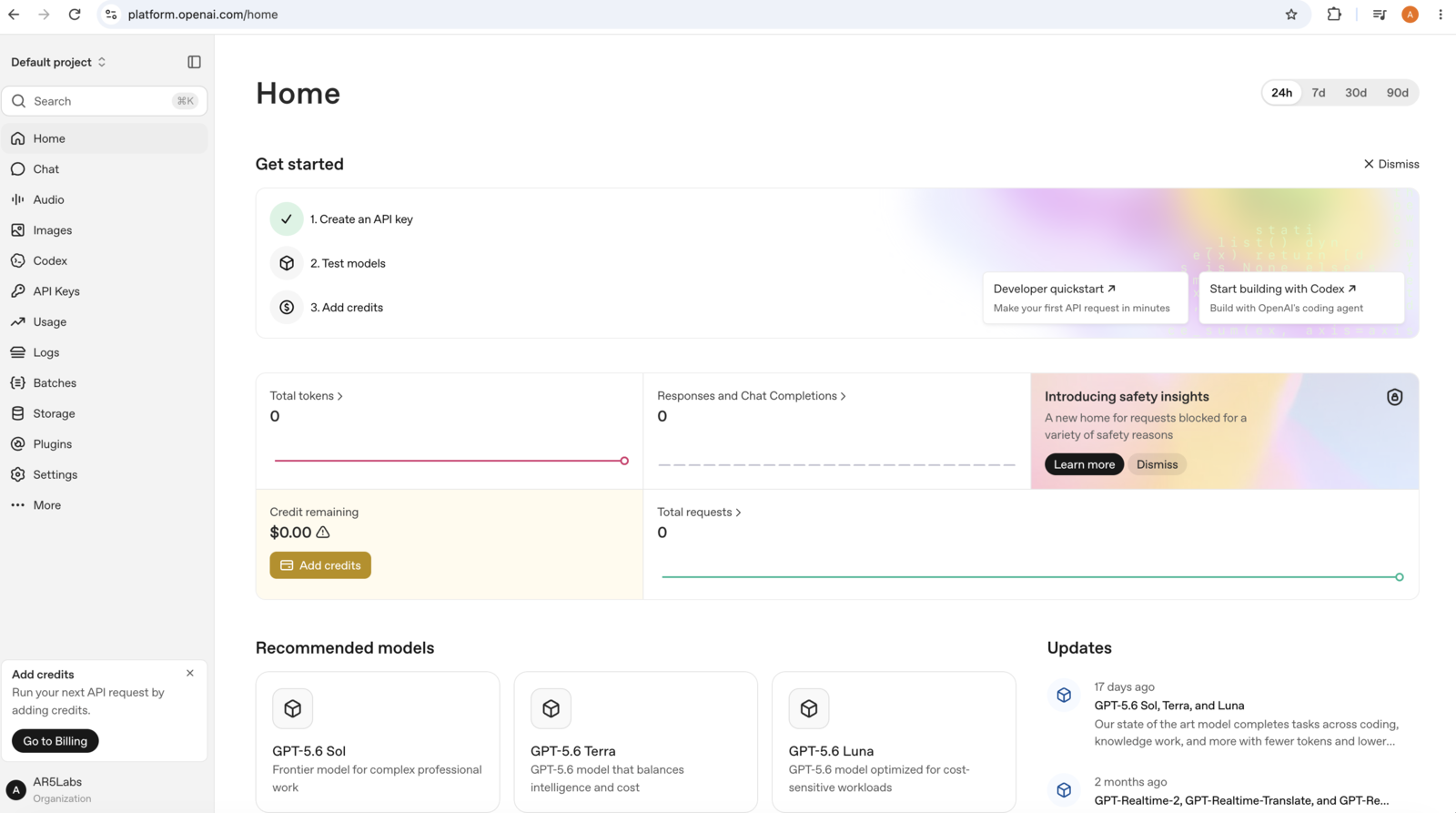
Your OpenAI dashboard at platform.openai.com shows Credit remaining. If it says $0.00 with an amber Add credits button, the top-up in Step 2 didn't go through (or you chose the Free plan) — click Add credits and top up there. Credit can take a minute to show up after paying.

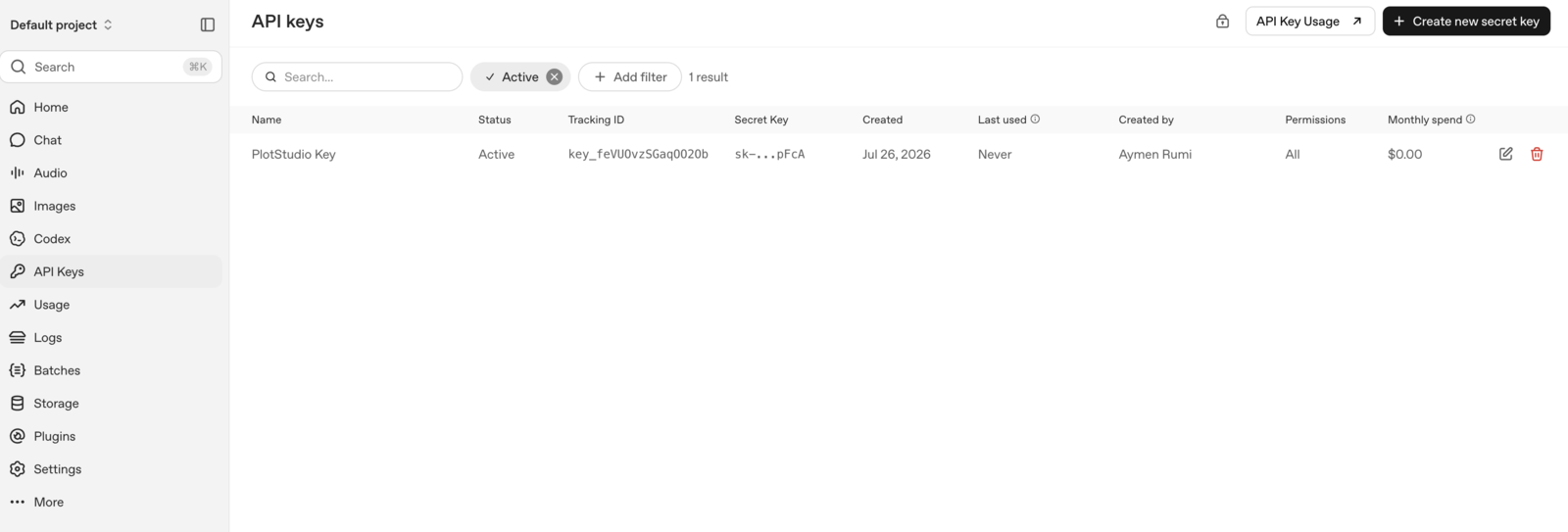
The API Keys page in the left menu lists every key you've made. This is where you go to create another one — Create new secret key, top right — if you skipped key creation earlier, lost your key, or want a separate key per machine.
That's it — you're ready
Head back to PlotStudio, paste your OpenAI key into the setup screen, and hit Validate & Continue. Your key is stored encrypted on your own device — PlotStudio never sees it.