Account guide 1 min

How to redeem free credits with a promo code

Received a PlotStudio promo code? Add the free credits to your account in three quick steps.

Before you start

Open the PlotStudio desktop app and sign in to the account where you want to use your credits. Have the promo code you received ready to copy and paste.

Promo codes add credits to a managed free trial, where PlotStudio provides the AI credits. Look for Free and Managed in your account menu.

This guide works with the code provided to you. It does not include a promo code; the number of credits you receive depends on your offer.
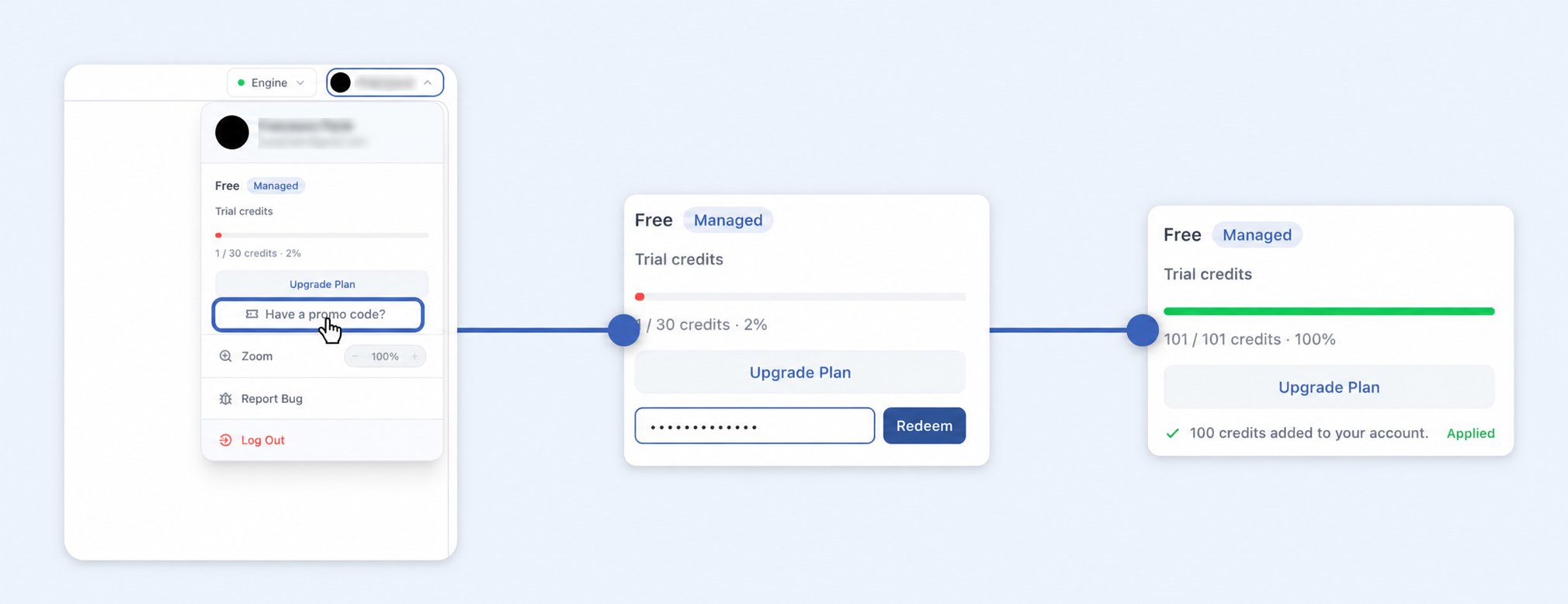
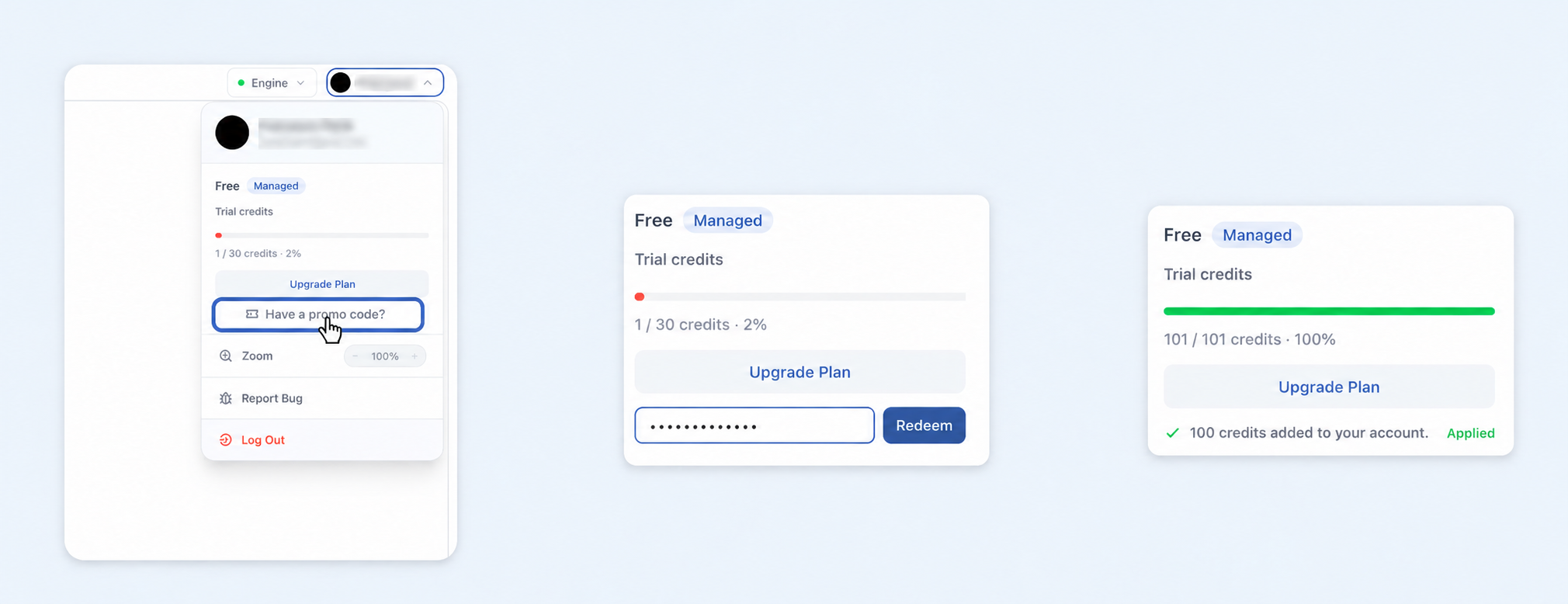
Three-step overview: open the account menu, enter a promo code, and see the credit confirmation
Open your account menu → enter your code → check your credits. The 100-credit reward pictured is an example.
1

Open your account menu

Click your user icon in the upper-right corner of PlotStudio. In the menu, click Have a promo code? to reveal the code field.
PlotStudio account menu with the user icon and Have a promo code? option highlighted in blue
Click your user icon, then “Have a promo code?”
2

Paste your code and click Redeem

Copy the promo code from the message or offer you received and paste it into the field that appears. Then click Redeem.

Promo-code field with a masked code entered beside the Redeem button
Use the code you received. No specific code is required by this guide.
Copy the code exactly
Include every letter, number, and any hyphens, and check that you haven't added spaces before or after the code.
3

Check that your credits were added

Look for the green confirmation showing that credits were added to your account and the Applied label. Your credit balance updates to reflect the reward.

Successful redemption showing a green credit bar, a credits-added confirmation, and Applied status
This example adds 100 credits. Your confirmation will show the amount attached to your code.

Your free credits are ready to use in PlotStudio.

Your existing credits stay in your balance
Promo credits are added to the credits you have left; they do not replace them. For example, 30 credits remaining + a 100-credit promo code = 130 credits. If you have 1 credit left, the same code brings your balance to 101, as pictured above. You can also redeem a valid code when your trial credit balance is zero.

You're ready to explore

Return to your workspace, upload a dataset or choose a sample, and ask your first question.

Questions and troubleshooting

Where do I get my promo code?+
Use the code in the message or offer that gave you free PlotStudio credits. This guide explains how to redeem it; it does not supply a code. If you received this guide without a code, contact the person or team who sent it.
How many free credits will I receive?+
The amount depends on your promo code. Check the offer you received and the confirmation after redemption. The screenshots show a 100-credit example, not a guaranteed reward for every code.
Will the code replace my remaining credits?+
No. It adds to your remaining balance. For example, if you have 30 credits left and redeem a code for 100 credits, you will have 130 credits. You do not need to use up your current credits first.
Can I use the same code more than once?+
Each code can be redeemed only once per account. Some codes are shared with multiple people, but each person can still redeem that code only once. A code may also have an overall redemption limit.
Can I redeem a code on any plan?+
These promo codes are for managed free trials, where PlotStudio provides the AI credits. They do not apply to a trial using your own API key or to a paid plan.
My code was not accepted. What should I do?+
Check for missing characters or extra spaces, confirm that you are signed in to the intended account, and read the message shown in the app. Check your offer for any eligibility or expiry conditions. If it still does not work, contact the team who provided the code and include the error message.
I clicked Redeem but cannot see my credits.+
Check for the green credits-added confirmation and Applied label in your account menu. If the balance still looks unchanged, close and reopen the menu and confirm that you are using the same account. If the issue continues, contact PlotStudio support with the message shown in the app.

Need help? Contact PlotStudio.