3 Paths to Run LLMs Locally for Research Teams, Audit Ready Privacy
Yes, you can run a capable large language model on your own hardware, and the fastest way to prove it is to install Ollama and run an 8B model right now. Success looks like a local prompt answering in seconds and an OpenAI-compatible endpoint listening on your machine, no cloud account required.
TL;DR:
- A minimum of 8 GB of VRAM and 10 GB of disk space per model is necessary to run most small to medium-sized language models locally.
- Ollama simplifies local deployment by automating model downloads and hardware detection, but for precise control, llama.cpp offers detailed hardware configuration options.
- vLLM is designed for serving multiple requests simultaneously, relying on continuous batching to maintain low latency with many concurrent users.
- Running models on hardware with sufficient VRAM, especially 8 GB or more, is critical for balancing model size, context length, and inference speed.
- Local inference enhances privacy and compliance for projects handling sensitive data but requires proper security measures like checksum verification and network binding.
Table of Contents
- How Do You Run an LLM Locally in Minutes?
- Path 1: Ollama for a One-Command Start
- Path 2: llama.cpp for Exact Hardware Control
- Path 3: vLLM for Concurrent Serving
- What Hardware Do You Actually Need?
- Fixing Common Local LLM Problems
- Is Running an LLM Locally Actually Secure?
- Confirming Your Local LLM Actually Works
- Why Local Inference Matters for Regulated Research
- When Is Local LLM Investment Worth It?
- A Local, Auditable Option for Research Teams
- Where to Learn More
- Sources
How Do You Run an LLM Locally in Minutes?
Getting a model answering locally is mostly a matter of matching your hardware to the right file size, then confirming the server responds before you build anything on top of it.
- Check your hardware first. You need at least 8 GB of VRAM (or unified memory on Apple Silicon) and roughly 10 GB of free disk space per model. VRAM is the single spec that determines what fits, so check it before downloading anything.
- Install Ollama. On macOS or Linux, run
curl -fsSL https://ollama.com/install.sh | sh. On Windows, grab the installer from ollama.com. - Pull and run your first model. Type
ollama run llama3.1:8b. Expect a multi-gigabyte download that typically takes a few minutes depending on your internet connection. - Verify with curl. Hit
http://localhost:11434/api/generatewith a JSON prompt payload and confirm you get a text response back. - Pick an 8B model first. It is the sweet spot between usable reasoning and hardware most laptops already have.
Path 1: Ollama for a One-Command Start
Ollama exists to remove friction. It handles model download, quantization selection, and GPU detection automatically, which is exactly why it has become the default entry point for anyone who wants to prototype without touching a config file.
Install it, then run:
- macOS/Linux:
curl -fsSL https://ollama.com/install.sh | sh - Windows: download and run the official installer
- First model:
ollama run mistralorollama run llama3.1:8b
Expect the first pull to take a few minutes depending on your connection; subsequent runs load instantly from cache. If the command hangs, check that no firewall is blocking port 11434. If it errors on memory, drop to a smaller model tag before troubleshooting further.
Pro Tip: Run ollama list after your first pull to confirm the model registered correctly before you assume something failed.
The moment you need to tune context length, force a specific quantization, or squeeze out extra tokens per second, Ollama’s simplicity becomes a ceiling. That is your cue to move to a direct runtime.
Path 2: llama.cpp for Exact Hardware Control
llama.cpp exists for the person who wants to know exactly what layers sit on the GPU, exactly which quantization is loaded, and exactly how much context memory costs. It trades convenience for precision.
- Clone and build with
make LLAMA_CUBLAS=1(or the Metal flag on Mac) to enable GPU acceleration. - Download a GGUF model file and run
./main -m model.gguf -ngl 35 -c 4096. - Read the startup log: it reports how many layers loaded to GPU versus CPU. If
nglis too high for your VRAM, the process crashes or falls back to CPU, so lower it incrementally. - Adjust
-c(context length) based on how long your prompts run. Larger context eats more VRAM before you write a single token.
Choose this path over Ollama when you need a specific quantization Ollama doesn’t expose, or when you’re benchmarking raw throughput on unusual hardware.
Path 3: vLLM for Concurrent Serving
Ollama and llama.cpp both assume one user, one request at a time. vLLM assumes many. It uses continuous batching to serve overlapping requests without the throughput collapse you’d see from naive queuing, which is why Red Hat’s engineering team frames it as the production-serving choice once you move past a single desk.
- Install with
pip install vllm, then serve withvllm serve meta-llama/Llama-3.1-8B-Instruct. - Fire 10 parallel curl requests at the endpoint simultaneously. If total wall-clock time stays close to a single request’s latency rather than multiplying by 10, batching is working.
- Monitor GPU utilization continuously. Unlike Ollama, vLLM assumes GPU is present; it isn’t designed for CPU-only fallback.
- Watch memory headroom under load. Concurrent requests consume KV-cache memory fast, and running too many at once triggers out-of-memory errors before you’d expect them.
What Hardware Do You Actually Need?
VRAM decides your ceiling before anything else does. It is the single most important spec for local inference, more than CPU clock speed, more than RAM, more than disk speed.
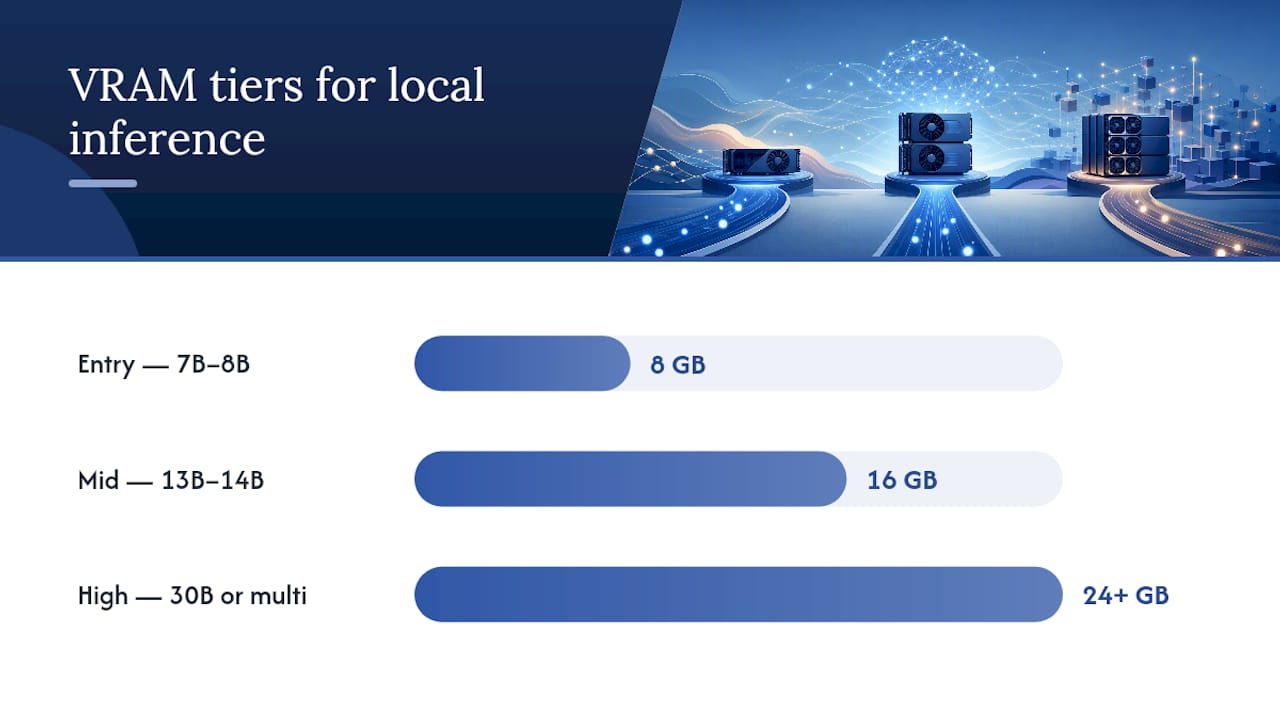
- 8 GB VRAM: Handles quantized 7B to 8B models comfortably (Llama 3.1 8B, Mistral 7B). This is the realistic entry tier for most laptops with a dedicated GPU.
- 16 GB VRAM: Opens up 13B to 14B models at higher quantization, or 8B models with generous context windows.
- 24 GB and above: Runs 30B class models, or multiple smaller models simultaneously for comparison work.
Check your actual VRAM before assuming a tier: nvidia-smi on Windows/Linux with an NVIDIA card, “About This Mac” for Apple Silicon’s unified memory, or Task Manager’s Performance tab on Windows. Memory bandwidth matters as much as capacity. Two cards with identical VRAM but different bandwidth will show meaningfully different tokens-per-second.
Before buying anything, run a cost checklist: hardware price, expected electricity draw under sustained inference, and disk space for the models you’ll actually keep (each full-precision model can run 15 to 40 GB before quantization).
Fixing Common Local LLM Problems
Most local LLM problems trace back to one of three things: wrong quantization, wrong GPU offload, or context length set too aggressively for available memory.
- Start with Q4_K_M. It’s the practical default across nearly every runtime because it balances file size against output quality better than more aggressive formats.
- Move to Q6 or Q8 only if you have VRAM to spare and you’re noticing quality loss on nuanced tasks like code generation or multi-step reasoning.
- Reduce
-ngl(GPU layers) if you hit out-of-memory errors. Fewer layers on GPU means slower inference but a stable process instead of a crash. - Shrink context length before shrinking the model. A smaller context window frees more memory per token than switching model size does.
- Watch for thermal throttling on sustained runs. If tokens-per-second drops steadily over a long session, check GPU temperature before blaming the model itself.
Understanding why Q4_K_M works requires knowing what quantization actually does to the underlying numeric format. The formal literature on bfloat16 and low-bit quantization explains the precision trade-offs in more depth than any single blog post can.
Pro Tip: If a model loads but produces garbled output, you likely have a quantization or tokenizer mismatch, not a hardware problem, so check the model card before touching your GPU settings.
Is Running an LLM Locally Actually Secure?
Running a model locally removes the biggest privacy risk, network transmission of your data, but it introduces new ones you have to manage yourself.
- Verify checksums on any model file before loading it. A tampered GGUF file is a real supply-chain risk, not a theoretical one.
- Bind your API server to
localhostby default. Only expose it to your network if you’ve added authentication or a firewall rule specifically for that purpose. - Never log raw prompts if they contain sensitive data. Rotate or disable logging for anything touching regulated information.
- Sanitize any external input before it reaches your model, especially in agentic setups where a scraped webpage or document could carry a prompt injection payload.
Confirming Your Local LLM Actually Works
A working setup shows itself through two quick tests, not a feeling that things seem fine.
- Run
curl http://localhost:11434/v1/chat/completionswith a sample message body against your local endpoint and confirm you get back a JSON response with achoicesarray and generated text, which is the standard smoke test documented across local-inference tutorials. - Fire 10 parallel requests at a vLLM server and confirm total time doesn’t scale linearly, proving continuous batching is active.
- Check your startup logs for the line reporting GPU layer count. That number confirms how much of the model actually landed on the GPU versus CPU.
Why Local Inference Matters for Regulated Research
For research involving patient records or IRB-governed data, uploading anything to a cloud API isn’t a policy preference. It’s frequently a hard compliance boundary under GDPR special-category rules or NHS data governance.
Running inference entirely on the researcher’s own machine means data never crosses a network boundary in the first place, which is the only workable posture once a study touches special-category personal data.
PlotStudio applies that same local-execution model to statistical analysis: every run stays on the researcher’s device, and every analysis plan is reviewed before code executes, producing an audit trail a supervisor or reviewer can actually check.
When Is Local LLM Investment Worth It?
Local inference trades cloud model quality for privacy and control, and that trade is worth making for anyone handling data they can’t legally upload. For a typical developer or researcher, the honest recommendation is to start with the Ollama quickstart, live with it for a week, and only move to llama.cpp or vLLM’s continuous batching once you feel its limits yourself.
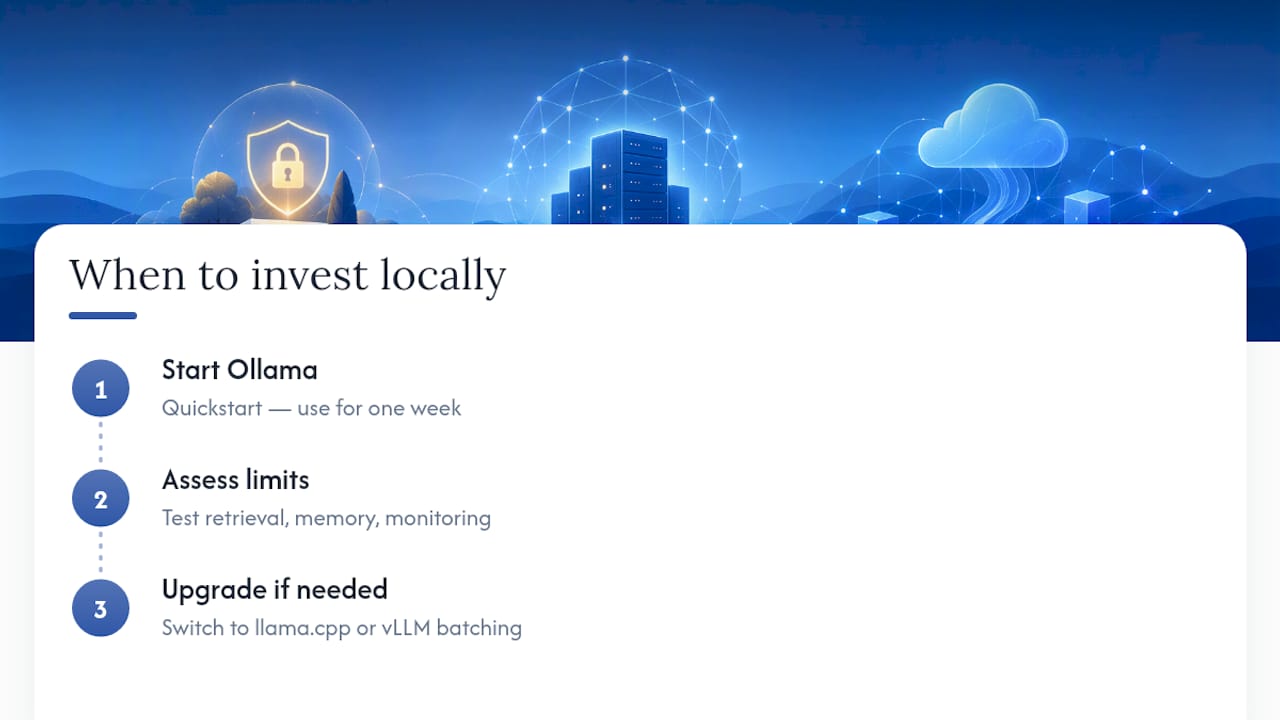
Most people overestimate the hardware they need and underestimate the operational tax of everything past the model itself. Running a single prompt locally is trivial. Running a reliable application with retrieval, memory, and monitoring is a different project entirely, and that gap is where most local LLM efforts stall out.
Try the quickstart today. Judge your own bottleneck before choosing a harder path.
— Aymen
A Local, Auditable Option for Research Teams
Most of what this article covers, Ollama, llama.cpp, vLLM, is built for running a model. Research teams usually need something adjacent: running an entire statistical analysis pipeline locally, with a record of exactly what happened.
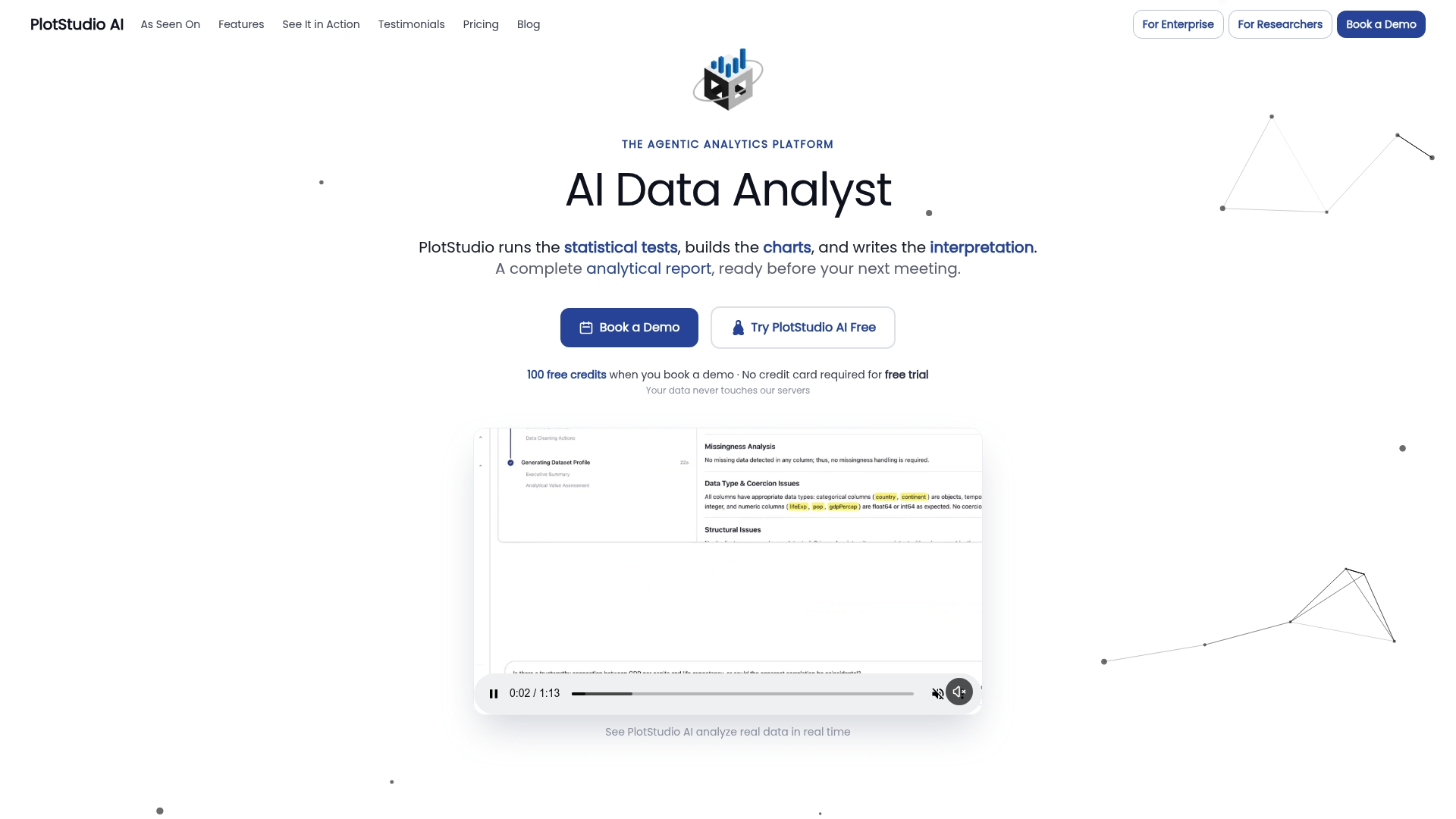
An agentic analysis platform can run analysis locally on your machine, so tabular data tied to IRB approval or GDPR special-category rules never has to leave the device to get analyzed. Every run can sit behind an analysis plan approved before any code executes, and results export as annotated notebooks and PDF reports that reviewers can trace step by step. For labs standardizing how a field runs certain statistical models, reproducibility matters more than raw model size. Check the enterprise deployment options to see what a managed local setup looks like for your team.
Where to Learn More
For deeper setup and troubleshooting, the Ollama documentation and NVIDIA Dynamo’s local installation guide cover install variants this article couldn’t. For full application stacks beyond a single model, llmaker provisions vector databases and observability from one CLI, and Droxy’s guide to LLM agents explains orchestration patterns worth understanding before you build one yourself.
Sources
- Ollama — One-Command Local LLM Serving | tutorialQ
- vLLM vs Ollama (Red Hat overview)
- NVIDIA Dynamo local installation
- Getting Started with Local LLMs | CanItRun