The best free AI tools for Excel data analysis are ChatGPT's Excel add-in for general work, Microsoft Copilot if your employer already pays for it, and a handful of tools with small free tiers: Autosheet, Julius AI, Ajelix, and Shortcut. A good pick works on your actual workbook, shows what it did, and has a free allowance big enough to finish one real job. If you need statistical tests and figures for a paper rather than formulas, PlotStudio AI's free trial is the better fit.
The catch is that nothing here is unlimited. Forum threads keep asking for an unlimited free AI that handles Excel, and the honest answer is that no such tool exists. Every vendor caps messages, credits, or file size, because each question costs real compute. Your job is to match the cap to the task, and to avoid pasting sensitive data into a tool you have not checked.
We build PlotStudio AI, a desktop analysis workspace for researchers, so we list it first and tell you where it stops. Below you get eight tools, each with what it does, what the free tier covers, and who should skip it. After that come a side-by-side comparison and a workflow that produces reliable results from any of them.
1. PlotStudio AI
What it does with Excel data

PlotStudio AI is a desktop analysis workspace from AR5 Labs that reads Excel and CSV files and answers questions about them in plain English. It is not an Excel add-in. You upload a workbook and ask something like "Does the treatment group differ from control on systolic blood pressure?" A team of AI agents then plans the analysis, writes Python, runs it on your machine, fixes its own errors, and interprets the result.
Every question produces a permanent analysis page with tables, charts, statistical tests, and a written interpretation. On upload, PlotStudio scores your data as Clean, Usable, or Needs Cleaning, then drafts a cleaning plan and applies it during the analysis. Later questions build on earlier pages instead of starting from zero.
Control is what separates it from a chat window. In Verification Mode you review the plan before it runs, edit the methods and assumptions, and approve them. Each edit shows a diff and can be undone in one click. When you finish, you can export a PDF report with embedded charts, formatted tables, and rendered equations, or a Jupyter notebook that reproduces the results with Run All.
Choose PlotStudio when the question is statistical, not when you need a formula in cell D2.
What the free tier gives you
The free trial includes 30 credits, needs no credit card, and needs no API key. If you would rather use your own key, there is a 3-day BYOK trial instead. How far 30 credits go depends on how many questions you ask and how heavy each one is. Treat the trial as a way to test one real dataset, not as a permanent free plan. The trial download lists macOS on Apple Silicon, so check the site for other platforms.
After the trial you choose between two plans:
- Bring Your Own Key: $39.99/month for unlimited queries on your own OpenAI API key, with no markup on tokens. You still pay OpenAI for usage.
- Managed Credits: $69.99/month with 300 credits included, no API key needed, and extra credits available.
PhD students, postdocs, faculty, and research staff can also apply for academic pricing. It requires an active affiliation with an accredited university, research institute, or research hospital.
Who it suits and where it falls short
PlotStudio suits researchers, graduate students, and clinical analysts whose datasets live in Excel and who need hypothesis tests, regression, survival analysis, and figures for a manuscript or thesis. Analysis and Python execution run locally, and PlotStudio's servers do not receive your dataset contents. Prompts still go to the model provider, so IRB-governed or patient data still needs your institution's sign-off.
It will not write formulas into your workbook or build pivot tables inside Excel. The free access is a trial, not an ongoing plan. And a publication-ready figure is not the same as a correct analysis. You stay responsible for choosing the method and checking the conclusions.
2. ChatGPT for Excel and Google Sheets
What it does with Excel data
OpenAI's ChatGPT for Excel and Google Sheets adds a sidebar that edits your workbook in place. It can build new sheets, clean messy data, write and fix formulas, trace errors across tabs, and draw charts. Before it changes anything, it explains its plan and asks you to confirm. It moved from an Excel beta in March 2026 to general availability in May 2026.
Can ChatGPT analyze Excel data? Yes, in two ways. The add-in works inside the file. You can also upload an .xlsx or CSV file to a regular chat and ask for summaries, groupings, and charts. That second route is the lowest-friction way to find out whether AI helps with your data at all.
For most people, the ChatGPT add-in is the best free starting point because it costs nothing to try.
What the free tier gives you
The add-in is included on every ChatGPT plan, including Free. Usage counts against agentic limits that run out quickly on Free and Go. Plus costs $20 a month and gives you more headroom. Expect these limits:
- Tight usage caps on Free, so a long session may stop midway.
- No bulk row-by-row processing. Classifying 10,000 rows is not what it is built for.
- Very large workbooks can hit context limits and return partial answers.
Who it suits and where it falls short
It suits anyone who already has a ChatGPT account and needs formula help, cleanup, and quick charts a few times a week. The confirm-before-editing step makes it a safe first AI tool for Excel.
Skip it for large-scale tagging or for data your organization forbids sending to third parties. Your workbook content goes to OpenAI, so check your employer's policy before you use it on work files.
3. Microsoft Copilot in Excel
What it does with Excel data
Copilot's Agent Mode, labeled "Edit with Copilot," is the most capable AI built into Excel. Plain Copilot Chat only answers questions. Agent Mode edits the workbook directly: it writes formulas, builds pivot tables, generates charts, formats data, and handles multi-step requests. It reached general availability on Windows in January 2026, with web and Mac following.
Copilot also searches the web and cites its sources, which helps when you need outside reference data next to your own numbers. A model picker exists, but which models you see depends on your tenant and rollout. Microsoft describes the feature set on its AI in Excel page.
Copilot is free only when someone else has already paid for the license.
What the free tier gives you
Eligible Microsoft 365 business and enterprise plans include standard Copilot Chat access, subject to service capacity. Priority access and model choice need the Microsoft 365 Copilot add-on at $30 per user per month. If you are on a personal Excel install with no Copilot license, this tool is not free for you, and you should start with item 2 instead.
- Included: standard access on eligible business and enterprise plans.
- Paid: the $30 per user per month add-on for the full experience.
- Variable: model availability by tenant and rollout ring.
Who it suits and where it falls short
It suits employees on a Microsoft 365 tenant who want AI without installing anything and who work only in Excel. IT has usually already vetted it, which matters when the data is internal.
It cannot reliably apply a prompt across thousands of rows, so tagging whole columns is out. It also slows down on complex requests and has no Google Sheets support.
4. Claude
What it does with Excel data
Anthropic's Claude for Excel is a sidebar add-in that reads across multiple tabs, understands how cells and formulas connect, and edits the workbook while tracking every change. It handles pivot tables, conditional formatting, charts, and outlier detection. Its standout trait is cell-level citations, so each number in an answer points back to the cells it came from.
That traceability matters when you must defend a result to a manager or reviewer. Claude can also pull live data from financial providers through connectors, which suits market and company analysis.
A free Claude account gets you chat-based analysis, not the Excel add-in.
What the free tier gives you
The add-in is free to install, but it requires a paid Claude plan: Pro at $20 a month, Max from $100 a month, Team, or Enterprise. The free Claude plan does not include it.
The free route is the chat itself. You can upload a spreadsheet to a conversation and ask for summaries, comparisons, and charts. Daily message limits shift with demand, so test it on one sheet rather than a whole project. Each add-in interaction processes the full workbook, which can burn a monthly allowance fast.
Who it suits and where it falls short
Claude fits people with complex, multi-tab workbooks who need explainable answers, and who either pay for Claude already or will accept a small spend. On the free plan, it is a decent second opinion on a single exported sheet.
The add-in has no bulk row-by-row processing and works only in Excel. Without a paid plan, you are working through chat uploads, not in your workbook.
5. Autosheet
What it does with Excel data

Autosheet is a native add-in for Excel and Google Sheets that adds a chat panel inside your spreadsheet. You describe the task, and its agent reads your data, runs the analysis, and writes results back into cells. It can clean messy columns, fill missing values, classify rows by category or sentiment, build pivot tables, and generate charts.
The feature that sets it apart is bulk processing. The vendor says its engine handles up to 1,000 rows per minute, with a single run covering up to 200,000 rows in Google Sheets or 1 million in Excel. Tagging 5,000 support tickets by topic is the kind of job it targets. It also lets you switch between OpenAI and Anthropic models.
If your problem is thousands of rows, not one clever formula, Autosheet is the free tool to test first.
What the free tier gives you
It is free to install, with free credits to start and no credit card required. After the credits run out, paid plans start at $25 a month with included usage, and extra credits can be pooled across a team. The credits are finite, so run your bulk job on a sample first and check how many credits it used before you scale up.
Who it suits and where it falls short
It suits analysts, marketers, and operations teams who live in spreadsheets and repeat the same cleaning or classification across large columns. The vendor lists ISO 27001 certification and GDPR compliance, which helps when you need to justify the tool to IT.
It is a spreadsheet agent, not a BI platform, so don't expect dashboards or a deep statistics workbench. Free credits suit a trial, not a standing workload.
6. Julius AI
What it does with Excel data
Julius AI is a standalone web analyst. You upload CSV, Excel, JSON, or PDF files, or connect a database such as Snowflake, BigQuery, or Postgres. You then ask questions in plain English and get charts, summaries, and statistical breakdowns. Behind the scenes, it writes Python or R and debugs its own errors.
It normalizes inconsistent formats well and offers more than 40 chart types. You can save analyses as reusable notebooks, schedule reports to Slack or email, and keep data in Google Sheets through a two-way sync. It also has iOS and Android apps, which is rare in this category.
Julius gives you an analyst in a browser tab, which is easier than an add-in but sits outside your workbook.
What the free tier gives you
The free tier allows 15 messages a month. That is enough to see the interface and run one small analysis. Paid tiers start with Plus at $35 a month, and Pro costs $45 a month. Julius has renamed and re-metered its plans more than once, so verify the live pricing before you commit. On the entry paid tier, uploaded files are deleted after 7 days.
Who it suits and where it falls short
It suits non-technical users who want a no-code analyst for one-off questions and polished charts, and who don't want to learn a BI tool. The vendor lists SOC 2 Type II and GDPR compliance.
The cap is tiny, and results degrade when column names or metadata are unclear. Because you upload files to a third-party service, treat confidential data with the same caution as any web tool.
7. Ajelix
What it does with Excel data
Ajelix is an AI workspace that combines chat, formula and SQL generation, data cleaning, dashboards, and reporting. It connects to Excel, Google Sheets, PostgreSQL, MySQL, CSV files, and custom APIs, and you drive it in natural language. Teams can build dashboards on live data and collaborate on reports.
The spreadsheet add-ons are narrower than the web app. They generate and explain formulas, save them to a library, and translate sheets. Cleaning, SQL, dashboards, and analytics still happen in the Ajelix workspace, so Excel users move between two places.
Ajelix is a reporting workspace first and a spreadsheet helper second.
What the free tier gives you
The free plan allows 10 requests a month, which is too little to evaluate properly. Lite costs $39 per user per month, or $32 billed annually. Higher plans raise file limits and AI usage, and some advanced models sit on the upper tiers.
Who it suits and where it falls short
It suits managers and business teams who want dashboards and recurring reports across several data sources, not just one workbook. If your sources include a SQL database, the workspace saves you from stitching tools together.
Expect some onboarding time, because the feature range is wide. The free cap forces you into a paid plan almost immediately for real work, so use it to check fit, not to run a project.
8. Shortcut
What it does with Excel data
Shortcut is built around financial modeling: LBOs, DCFs, and three-statement models. It installs as an Excel plugin from Microsoft Marketplace and also runs on the web, on desktop, and as a Google Sheets plugin. Its pitch is auditability. It writes formula-driven output rather than hard-coded numbers, so the model still recalculates when you change an assumption.
It also logs every changed cell, so you can revert any step. That is the right behavior for a model someone else will review.
Shortcut earns its place only if your Excel work is financial models.
What the free tier gives you
The free plan includes 20 weekly credits. Pro costs $125 a month, or $100 a month billed annually. Teams start at $320 a month plus $100 per seat, and Enterprise is custom. Everything is metered in credits, so a long agent session can use a week's allowance quickly. Test it on a small model first.
Who it suits and where it falls short
It suits finance teams, analysts, and investors who build and audit models in Excel. The change log alone makes it worth a free trial if you have ever lost an afternoon to a silent overwrite.
It is the wrong tool for cleaning survey responses or tagging feedback. It has no bulk row-by-row processing, and credit metering makes heavy use expensive.
Which free AI tool to pick for your data
Pick by the kind of work first and the price second. The longest-lasting free access is ChatGPT's, the best fit for bulk spreadsheet jobs is Autosheet, and the deepest research-style analysis is in PlotStudio's trial. The right AI tool for Excel data analysis is the one whose limit your task does not hit.
Side-by-side comparison
| Tool | Where it runs | Free access | Best for | Main catch |
|---|---|---|---|---|
| PlotStudio AI | Desktop app, separate from Excel | 30-credit trial, no card | Statistics and figures for research | Trial, not ongoing free |
| ChatGPT | Excel and Sheets add-in, chat uploads | Free plan, limited usage | General formulas, cleanup, charts | Caps on Free, no bulk processing |
| Microsoft Copilot | Inside Excel | Only with an eligible plan | Workplace Excel users | Add-on costs $30 per user per month |
| Claude | Chat free, Excel add-in paid | Chat on free plan | Multi-tab, traceable analysis | Add-in needs a paid plan |
| Autosheet | Excel and Sheets add-in | Free credits, no card | Bulk cleaning and classification | Credits run out, paid from $25/month |
| Julius AI | Web app | 15 messages a month | No-code one-off analysis | Tiny cap |
| Ajelix | Web workspace and add-ons | 10 requests a month | Dashboards and reports | Cap too low to evaluate |
| Shortcut | Excel plugin, web, desktop | 20 weekly credits | Financial modeling | Narrow focus, credit metering |
A quick way to choose
Match your situation to the line that fits best:
- Formulas, pivot tables, and charts in your own file: the ChatGPT add-in, or Copilot if your plan includes it.
- Thousands of rows to clean or classify: Autosheet.
- Hypothesis tests, regression, survival analysis, journal figures: PlotStudio AI.
- A one-off analysis from an uploaded file: Julius AI, or a ChatGPT upload.
- Financial models you must audit: Shortcut.
- Dashboards and SQL across sources: Ajelix.
- Complex multi-tab workbooks with cited answers: Claude, on a paid plan.
How to analyze Excel data with AI and trust the result
To use AI for Excel data analysis reliably, prepare a clean table, ask one specific question, test on a sample, and verify the answer yourself. The workflow is the same for every tool above, and it matters more than which tool you pick.
Prepare your workbook first
AI tools misread messy layouts far more often than messy values. Before you upload or open a sidebar:
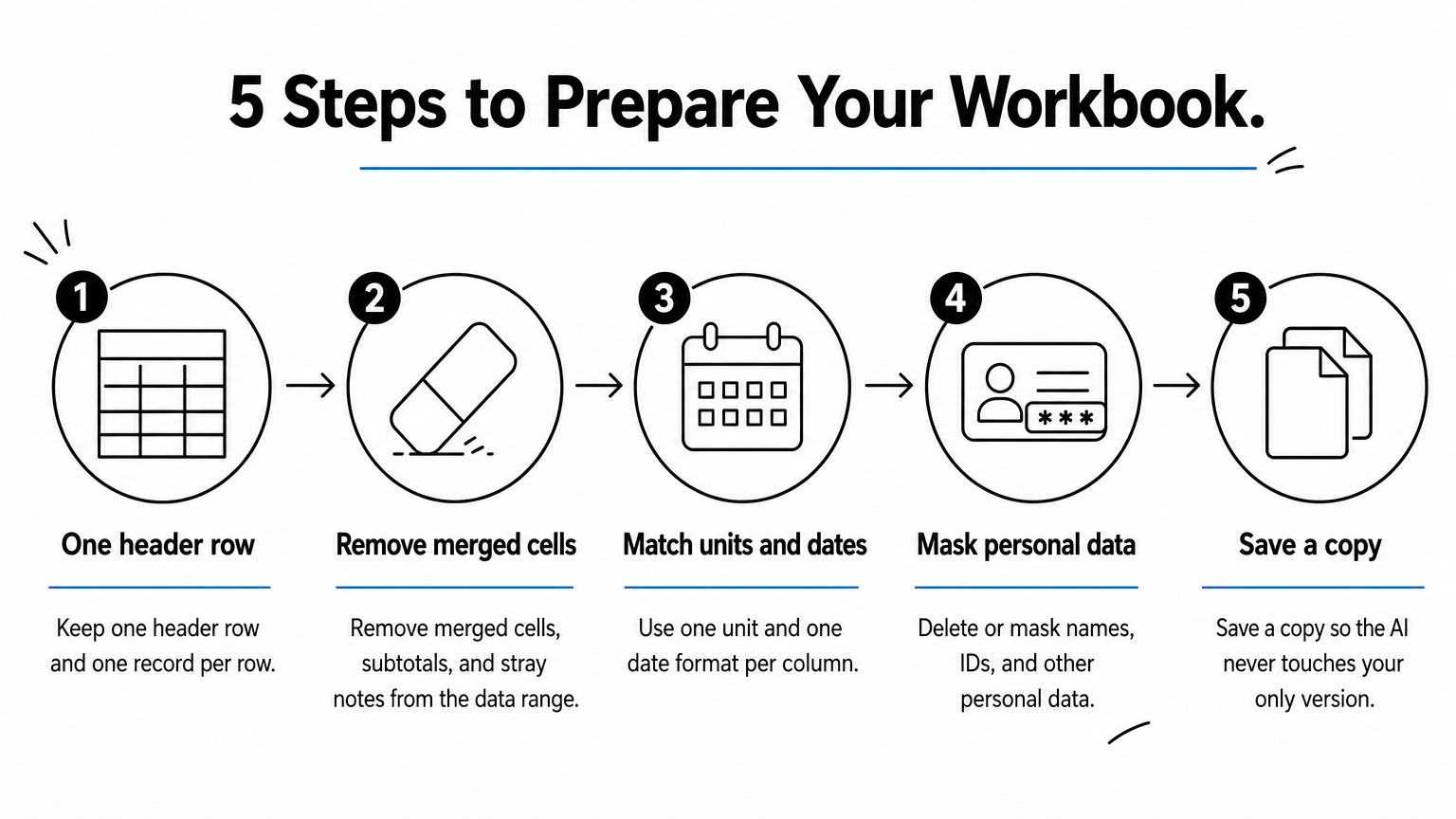
- Keep one header row and one record per row.
- Remove merged cells, subtotals, and stray notes from the data range.
- Use one unit and one date format per column.
- Delete or mask names, IDs, and other personal data you do not need.
- Save a copy, so the AI never touches your only version.
Write prompts that return usable analysis
A good prompt names the sheet, the columns, the goal, and the output you want. Vague prompts like "analyze this" produce vague answers. Copy and adapt this template:
Dataset: sheet "Sales", columns A to F, one row per order.
Goal: find out whether average order value differs by region.
Task: summarize order value by region, run an appropriate test, and chart the result.
Output: one table and one chart on a new sheet. Leave the raw data unchanged.
Before you start: tell me which test you chose and why.
The last line is the most useful one. Asking for the method forces the tool to state its assumptions, and you can catch a wrong choice before it reaches your report.
Check the output before you use it
Spot-check at least one number by hand. Recompute a total, a group mean, or a count with a plain Excel formula and compare it with the AI's answer. If it differs, refine the prompt and rerun on a smaller range instead of trusting the rest.
Work out your cap before you start, too. Suppose a typical analysis takes four prompts: ask, refine, chart, summarize. Julius's 15 free messages then cover about three analyses a month, and Ajelix's 10 requests cover two. If you need more, move to a tool with credits that refresh weekly or a paid tier.
An AI answer you have not spot-checked is a draft, not a result.
Start with one real dataset
No free tool does everything, and none is unlimited. ChatGPT's add-in is the easiest place to begin, Copilot is free if your employer pays for it, and Autosheet, Julius, Ajelix, and Shortcut each give a small free allowance for a specific kind of job. Test your pick on one real sheet, check one number by hand, and only then scale up.
If your data is research data and you need tests, models, and figures with the methods visible, try PlotStudio AI. You can run a real dataset through the PlotStudio AI free trial with 30 credits, no credit card, and no API key, and decide from the results.